User guide
Using AI Box, one step at a time
From buying, to receiving your licence, to asking your first question — and what to do if something looks wrong. The pictures are taken from the online demo, so sample documents appear in them.
1. How to buy
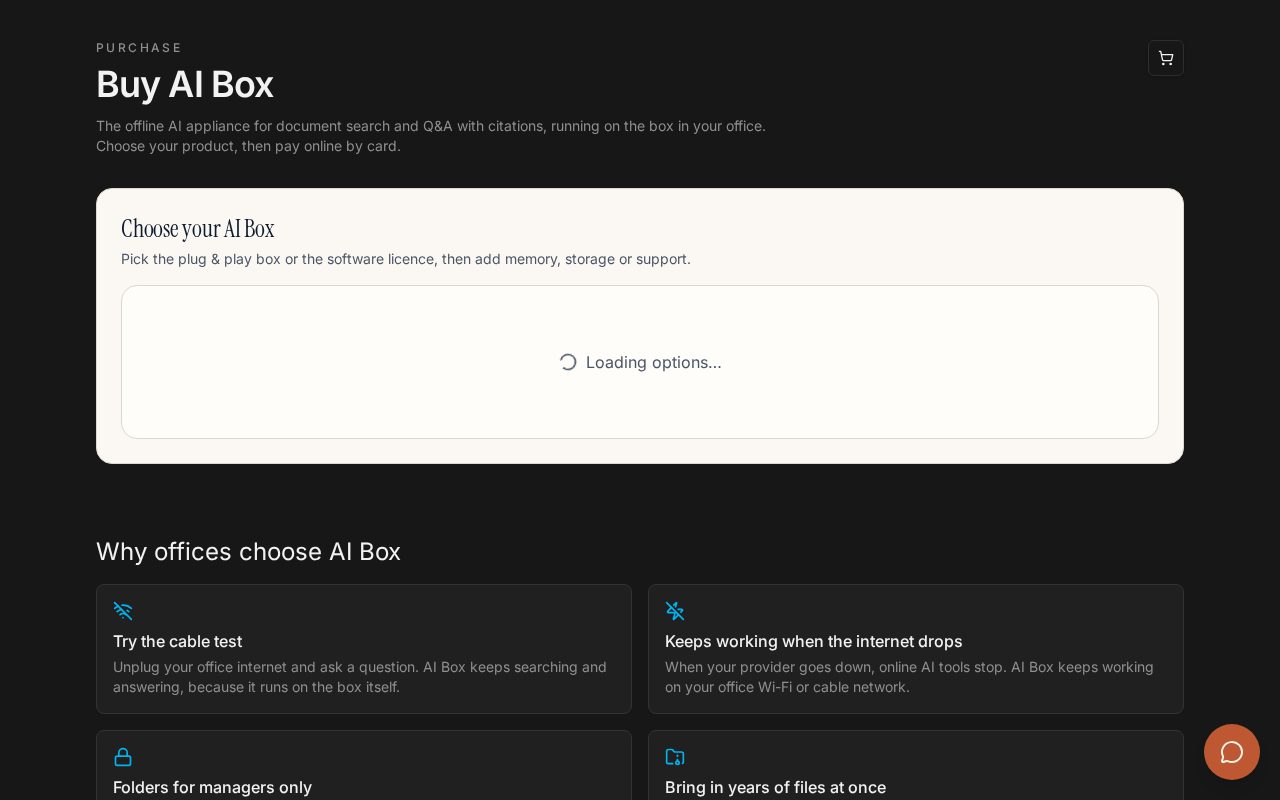
Go to the Buy page and pick one of three options:
- AI Box appliance — $599. A ready box with the software, local AI model and a 25-user licence. Memory upgrade to 16 GB: +$60. Shipping: $25 in Nigeria, $90 international.
- AI Box Pro — $1499. A stronger business mini PC (Core i7, 32 GB memory, 1 TB fast storage) for large archives and shared office folders. Built to order after a free technical check.
- Software licence — $399. Install on your own Ubuntu or Debian computer (8 GB memory or more). Never expires; 1 year of updates and support, then $99/year to keep updates.
- Optional remote setup — $249. We set it up with you on a video call.
Pay by card through Paystack. Cards from outside Nigeria are charged in US dollars where possible; otherwise in naira at the day's rate.
Not sure yet? Book a free 30-minute walkthrough.
2. How your licence reaches you
- Appliance buyers: the licence is already on the box before it ships. Nothing to type.
- Software buyers: right after payment, the confirmation page shows your licence key with a copy button and the install command. The same details are emailed to you.
Install on your computer with one command:
curl -sSL https://aiconnectbox.name.ng/install.sh | sudo bash
The box checks the licence itself, with no internet needed. Lost your key? Message us on WhatsApp with your order email.
3. Open the box
- Plug in power and a network cable to your office router (or the Wi-Fi given at order).
- Wait a few minutes for it to start.
- On any computer or phone on the same office network, open
http://<box name>.local:8000— the box name is on your delivery note (for example aibox-01). - The first time, set the admin password. Then add staff under Users.
4. Enterprise: big offices and shared folders
For larger offices — many staff, or a big shared folder on the office network (a NAS or file server, sometimes called the LAN):
- AI Box Pro — $1499. A business mini PC: intel core i7 mini pc, 32 gb memory, 1 tb nvme ssd. Built for large archives and 20–100+ staff. Built to order after a free technical check.
- Software licence — $399. If you already have a server or strong office computer, we install AI Box on it — no new hardware to buy.
Connecting your shared folder: from Documents → Import many files, choose the office shared folder (for example \\Server\CaseFiles). The box only reads it — it never changes or deletes your files.
Automatic updates from the shared folder: once connected, the box checks the folder for new files every hour on its own — nobody needs to copy files by USB.
Microsoft 365 (SharePoint / OneDrive): the box never asks for your Microsoft password. On an office computer or server, use Microsoft's OneDrive app to sync the library (Sync button in SharePoint), share that folder on the network, then connect it as above. Word, PowerPoint and PDF files are read; Excel and Outlook emails are not read yet.
For your IT department: the IT & network specification lists the ports used, internet use and where data is stored. It prints cleanly as a PDF.
Business Priority Support — $299/year: reply within 4 business hours (Mon–Fri, 9am–5pm Lagos time), a ticket number for every request, and a same-day video call if the box stops working. Add it when you buy.
Very large archives (1 TB or more): reading everything takes days or weeks, not hours. Start with one department or one active matter folder, confirm the speed, then add the rest in stages. Searches work on what is already read.
Who sees what: use Restricted folders (next section) so HR, payroll or client-confidential folders are visible to the right people only.
Not sure which fits your office? Book a free walkthrough and we will look at your setup together.
5. Your office network (LAN) explained
What a LAN is: the private network inside your office — the cables, Wi-Fi router and switch that connect your computers, printers and file server. Traffic on it stays inside the building and does not need the internet.
How the box joins it: plug the box into your office router or network switch with an ordinary network (Ethernet) cable. Staff then open http://aibox.local:8000 in their browser. If that name does not work on your network, ask IT to give the box a fixed address (for example http://192.168.1.50:8000) and use that.
Your big file server stays where it is: if your office has a NAS or file server (for example 32 TB of storage with 3 TB used), the box does not copy all of it. It reads the files over the network, keeps only the text it needs to search, and links back to the original. The search data is much smaller than the original files, but the exact size depends on your documents — we measure it on a sample before quoting.
Read-only: IT creates a separate read-only user for the box on the shared folder. The box only reads with that user; it never changes, moves or deletes your files.
What IT needs to allow:
- Staff computers → box on port 8000 (the web page).
- Box → file server on port 445 (Windows shared folders, SMB).
- Internet is optional. The box answers questions with the internet cable unplugged; it is only used for updates if you allow it. Updates can also arrive by USB.
Who can see what: the box does not copy Windows folder permissions automatically. Connect only folders everyone in the box may see, or use Restricted folders for sensitive ones.
Working from home: the box is only reachable inside the office network. Remote staff need your office VPN.
Common problems: page will not open → check the box cable and lights, then try its fixed address. Shared folder will not connect → check the folder path (\\Server\Folder), the read-only username and password, and that port 445 is open. New files not showing → wait for the hourly check or press Sync now.
5b. For the IT person: connect a shared folder or Microsoft 365, step by step
A. Windows file server or NAS
- On the server, create a new user called
aibox-readerwith its own password. - Right-click the shared folder → Properties → Sharing / Security. Give
aibox-readeronly Read, Read & execute and List folder contents. Leave Modify, Write and Delete unticked. - Make sure the box can reach the server on port 445 (Windows file sharing). On most office networks this is already open.
- Note the folder address, for example
\\192.168.1.50\CaseFilesor\\SERVER\CaseFiles. - On AI Box, sign in as admin → Documents → Import many files → Office shared folder (Windows share or NAS).
- Type the folder address, the username
aibox-readerand its password. Leave Check every hour on, then press Sync now.
B. Microsoft 365 (SharePoint or OneDrive)
- Pick an office computer or server that stays switched on.
- Open the SharePoint library in the browser and press Sync. OneDrive brings the files to that computer.
- In File Explorer, right-click the synced folder → Always keep on this device, so real files (not cloud shortcuts) are stored.
- Share that folder on the office network and give
aibox-readerread-only access, as in steps A1–A2. - Connect it on AI Box exactly like step A5–A6. The box never asks for a Microsoft password.
Files the box reads: PDF, Word, PowerPoint, text, web pages, e-books and scanned images. Not yet: Excel and Outlook emails.
If it will not connect: check the address uses back-slashes, the username and password, that the user has Read permission, and that port 445 is open between the box and the server.
6. Add documents
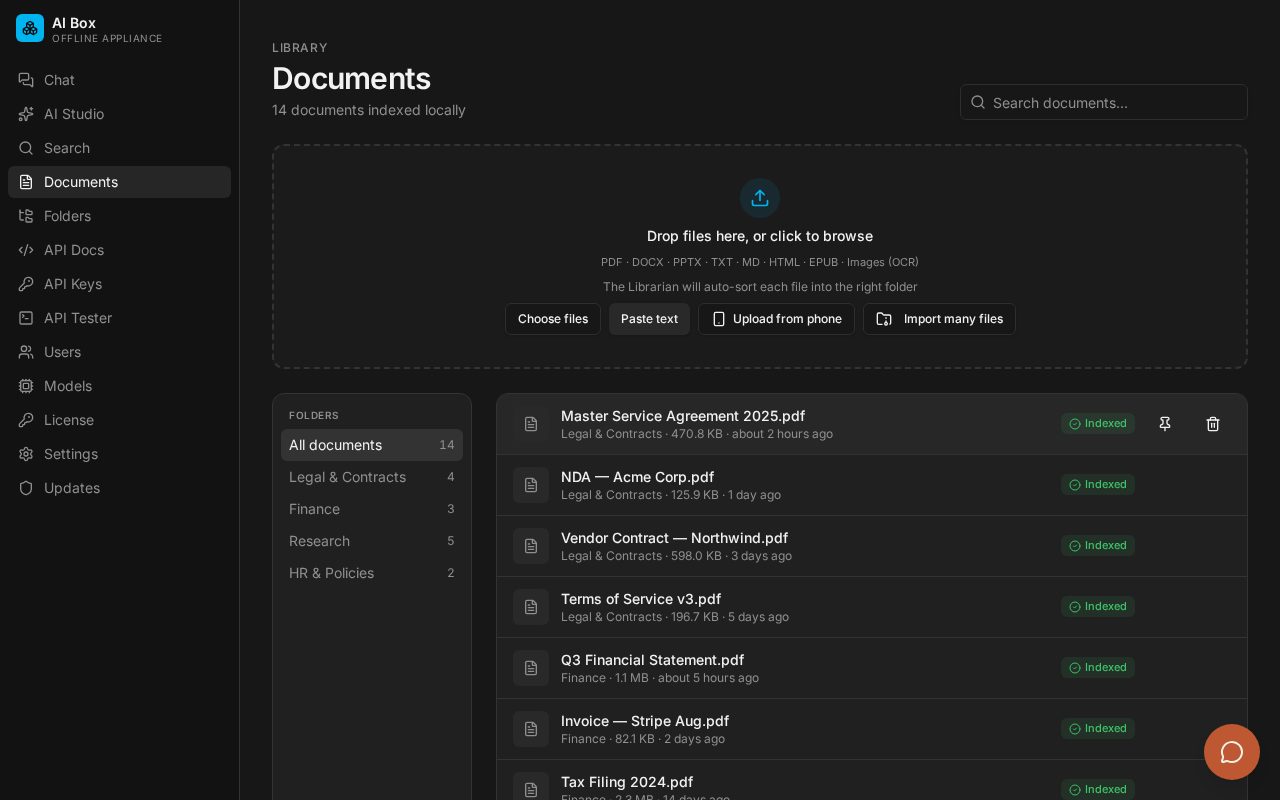
Open Documents. You can:
- Drag files in, or press Choose files (PDF, Word, PowerPoint, text, web pages, e-books, and scanned images).
- Press Upload from phone to send photos or files from a phone.
- Press Import many files for a ZIP file, a USB drive, or an office shared folder.
Each file is sorted into a folder automatically. If the power or Wi-Fi drops during a big upload, it continues where it stopped.
7. Ask questions and check sources
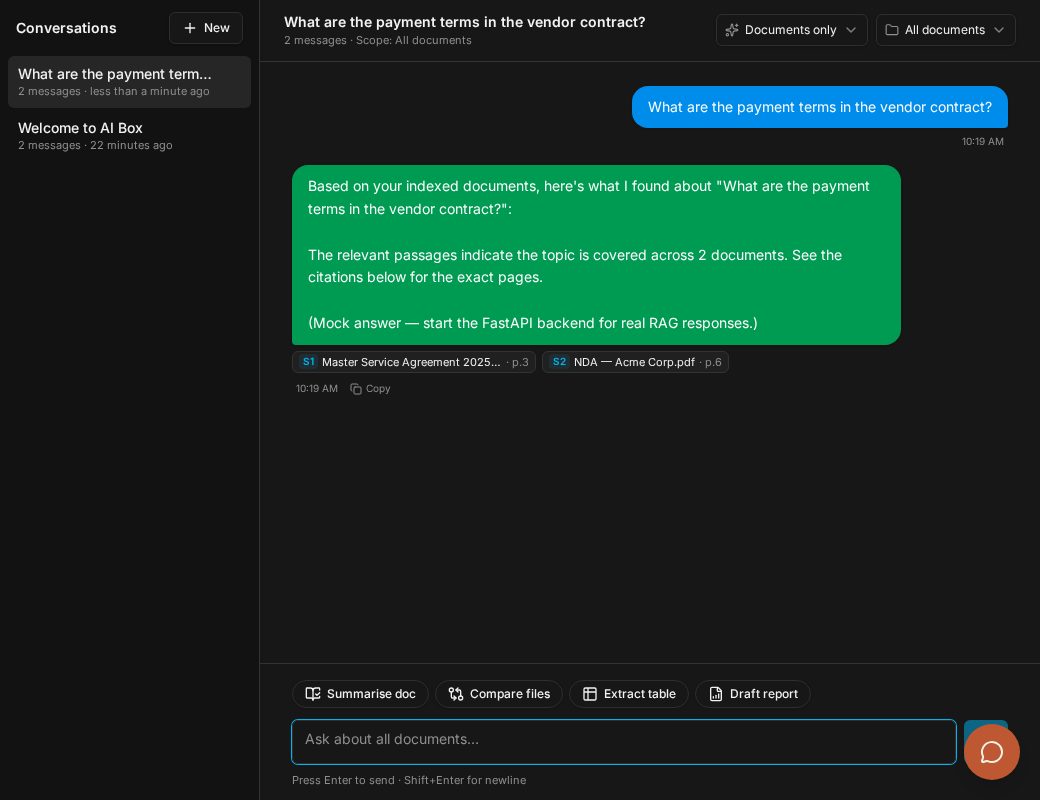
Open Chat, press New, and type a question in plain words, such as "What are the payment terms in the vendor contract?"
- Each answer shows small badges like S1 and S2. Tap one to see the exact page it came from.
- From there, press Print passage, or Open full document to jump to that page and press Print page or Print whole document. If the file came from your shared folder, the original is still on your server to open in Word or Acrobat.
- If the documents don't contain the answer, the box says so instead of guessing.
- Page numbers: "page 5" means the 5th sheet of the PDF file, which can differ from the number printed on the page (for example when a brief starts with i, ii, iii pages).
- How long it takes: finding the right passages usually takes under 2 seconds. Writing the answer happens on the box itself, so expect about 10–30 seconds on the Compact box and less on Pro. Scanned pages take a few seconds each to read when first added.
- Use the buttons under the box — Summarise doc, Compare files, Extract table, Draft report — for common jobs.
8. Restricted folders
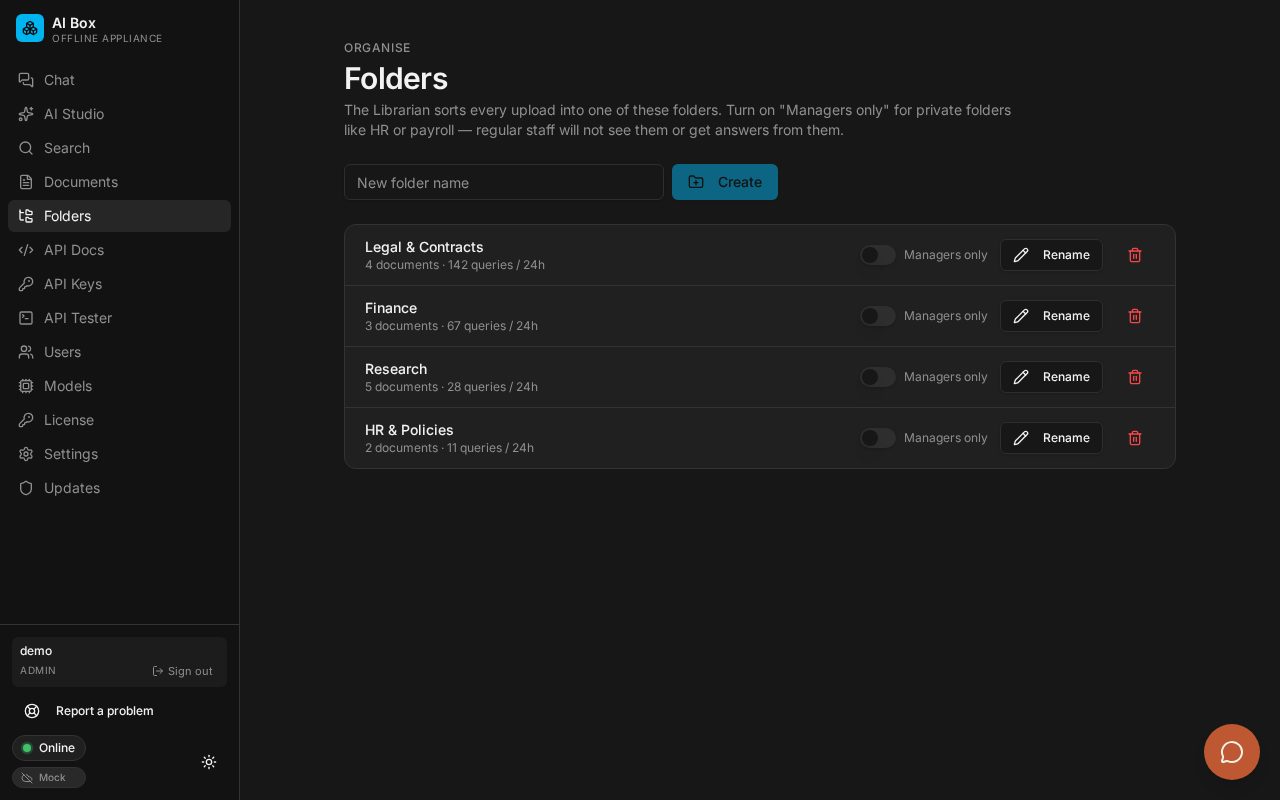
Open Folders. Turn on Managers only for folders like HR or payroll. Regular staff then won't see those files in search, chat or AI Studio.
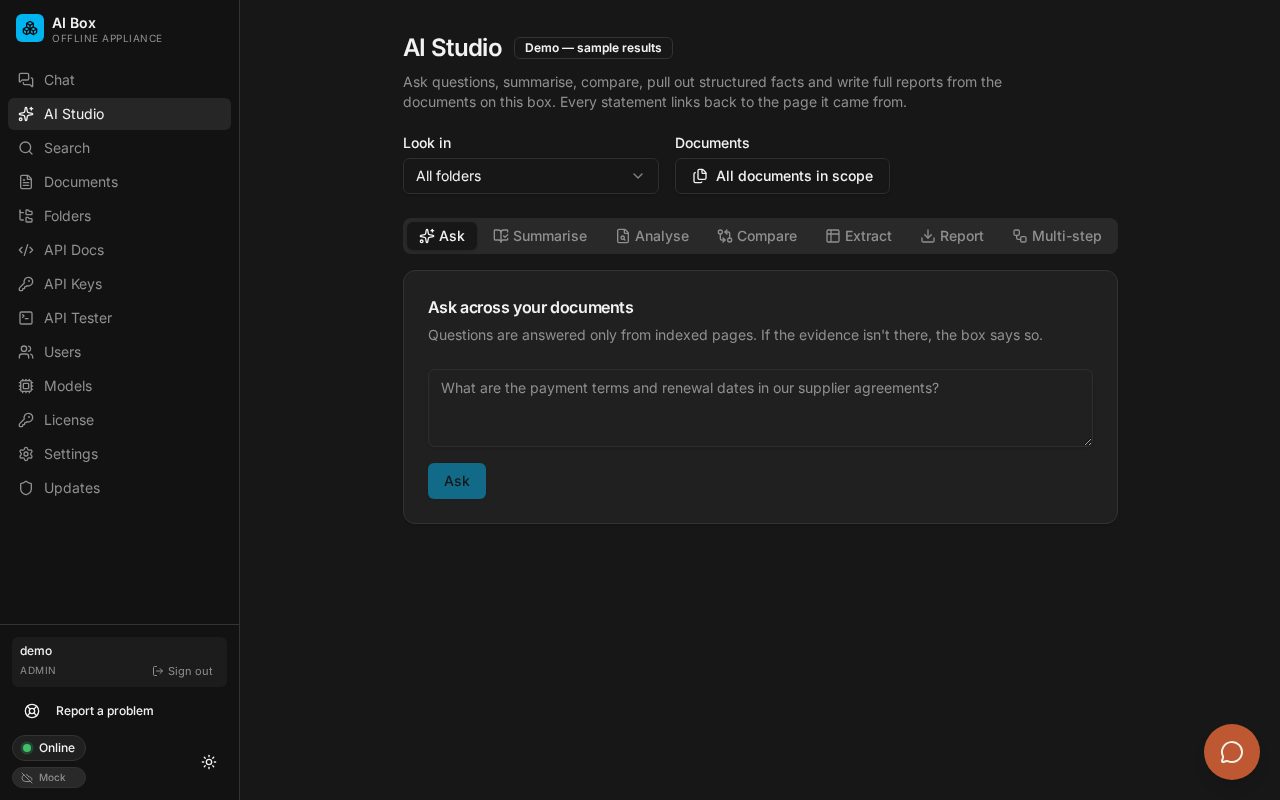
9. AI Studio
For bigger jobs: summarise a long file, compare two contracts, pull out a table of dates and amounts, or write a full report. Every statement links back to its page.
10. Box health and problems you may see
Admins open Updates → Diagnostics on the box. It checks the box on the spot and shows:
- Box health — AI model running, storage space left, memory and temperature.
- Problems reported by staff — anyone can press Report a problem at the bottom of the menu.
- Install fix & go back — install a signed fix; a restore point is made first, so you can undo it.
| What you see | What to do |
|---|---|
| The box address won't open | Make sure your computer is on the same office network as the box. Try the box's number address from your router's device list, followed by :8000. |
| Answers are slow | The box may be reading a large batch of new files. Speed returns when it finishes. 16 GB memory helps for big libraries. |
| A file stays on "processing" | Very large scans take longer. If it doesn't finish, delete it and upload again. |
| USB drive not found | Unplug and plug it back in. Use a drive formatted as FAT32, exFAT or NTFS. |
| "No answer found in your documents" | The documents don't contain it, or it's in a Managers-only folder you can't see. Try other words, or ask an admin. |
| Storage almost full | Delete old copies, or choose a bigger storage upgrade. |
11. Getting help
- In Diagnostics, press Get help from AI Box support. It makes a short report and can save it to a USB drive or open WhatsApp with it filled in.
- The report removes document text, file names, chats, passwords, keys and email addresses before it is made. Nothing is sent unless you send it.
- WhatsApp: 0816 714 0857 · or book a call.